WISE PHOTOS HOW-TO
How to use the Wise Photos app
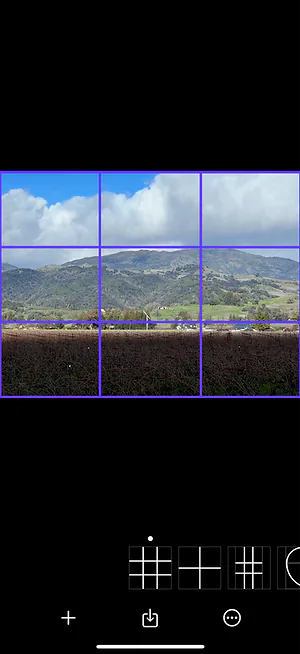
This video shows the basics of how to use the Wise Photos app on your iPad. The same features are available in the Wise Photos app for the iPhone.
How to use the Wise Photos app for artistic composition in paintings
The Wise Photos app can also be used by painters and artists, not just photographers. If you're a painter in any medium like acrylic, watercolor, pastels, oil, or ink, you can use the Wise Photos app to apply artistic compositions to your paintings or drawings. Read more about how to use the Wise Photos app for painting here.
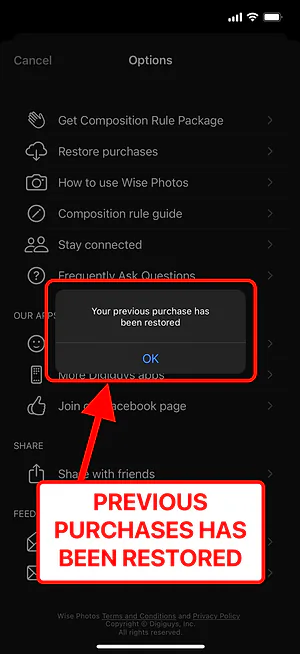
Restore Purchases ⚠️
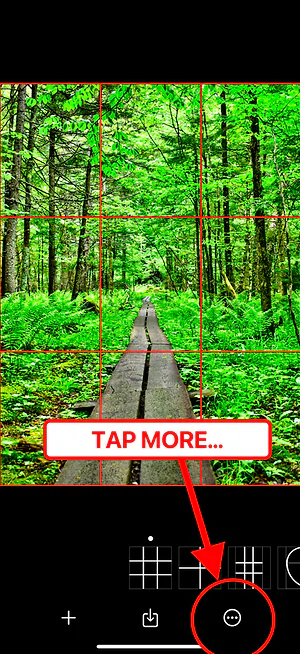
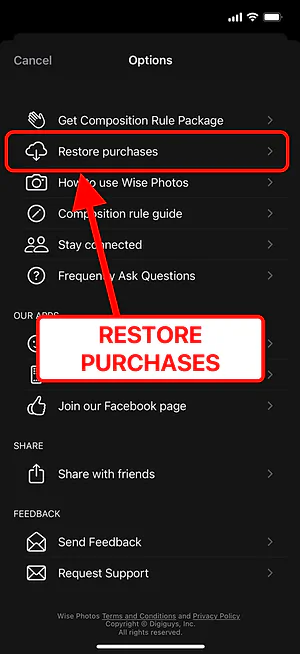
If you have purchased the Wise Photos app or the Composition Rules Package in the past, and you reinstall the app, you will need to "Restore Purchases" from the Options menu. You must restore previous purchases on a device using the same Apple ID used with the previous purchase.
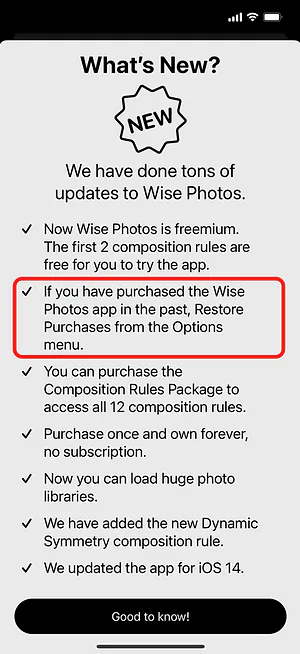
The Wise Photos app needs access to Apple Photos library to save photos
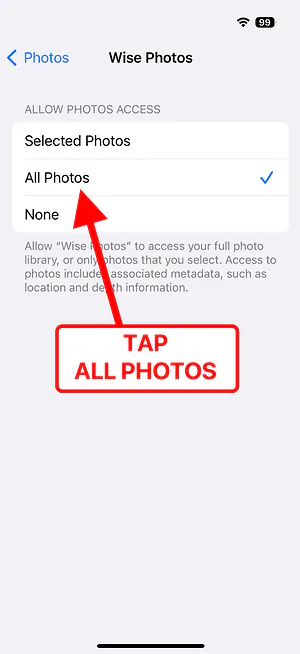
The Wise Photos app needs access to your Apple Photos app library in order to save photos. During the Wise Photos app installation, you will be asked for permission to access your iPhone Apple Photos app library. Please tap "Allow Access to All Photos" when asked.
The Wise Photos app will save two photos, one with the composition rule's red guidelines and another without the composition guidelines.
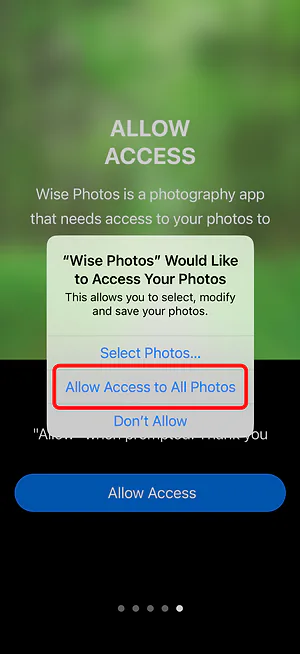

If you do not provide permission during the installation, you can uninstall the app, reinstall it, and then provide the necessary permissions. You can also follow the instructions below to provide access without reinstalling the app.
The Wise Photos app is not saving photos in the Apple Photos library?
The Wise Photos app needs access to your Apple Photos app library in order to save photos. The Wise Photos app will save two photos, one with the composition rules red guidelines and another without the composition rules.
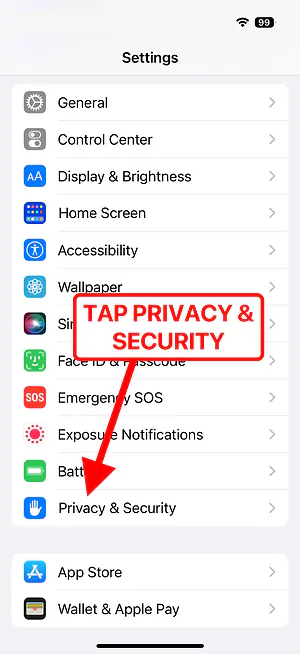
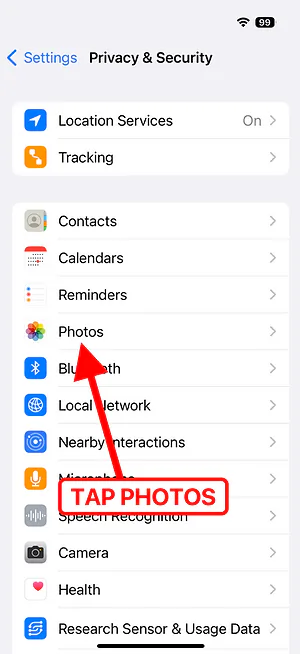
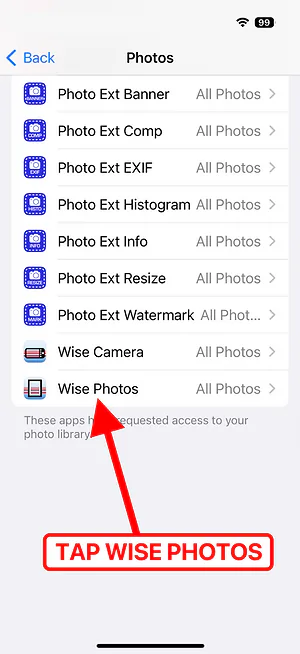
When installing the Wise Photos app, the app will ask permission to access your Apple Photos app library, but sometimes this step might be skipped. If this happens, you can reinstall the app to give permissions or go to Settings → Privacy → Photos → Wise Photos → check "All Photos".
How to use the Wise Camera and Wise Photos apps if you are color blind
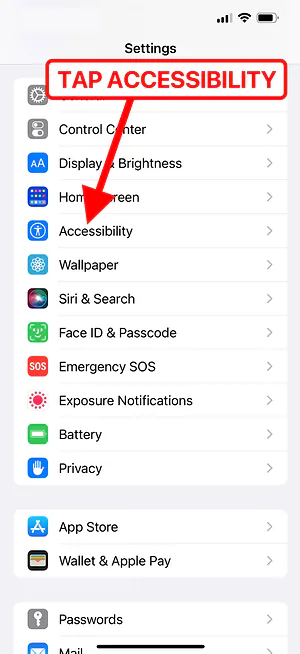
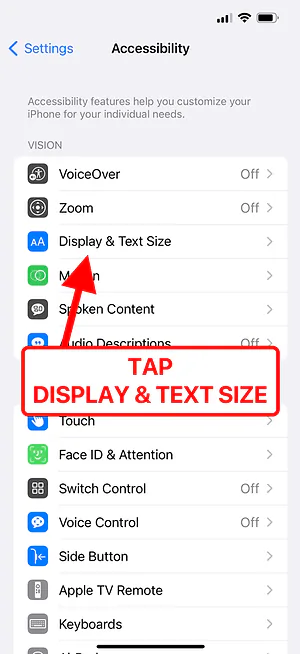
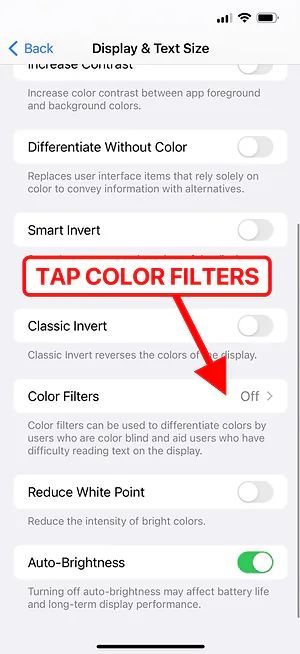
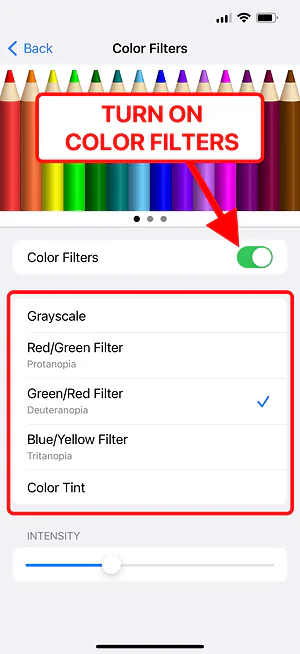
The Wise Camera and Wise Photos apps display the artistic composition rules with red color lines. This can be an issue for color-blind people. You can set your iPhone accessibility features to change the composition rules red color lines to a more appropriate color for you.
To use the iPhone accessibility features for color-blindness, go to Settings → Accessibility → Display & Text Size → Color Filters → Turn on Color Filters and select the appropriate options and intensity.